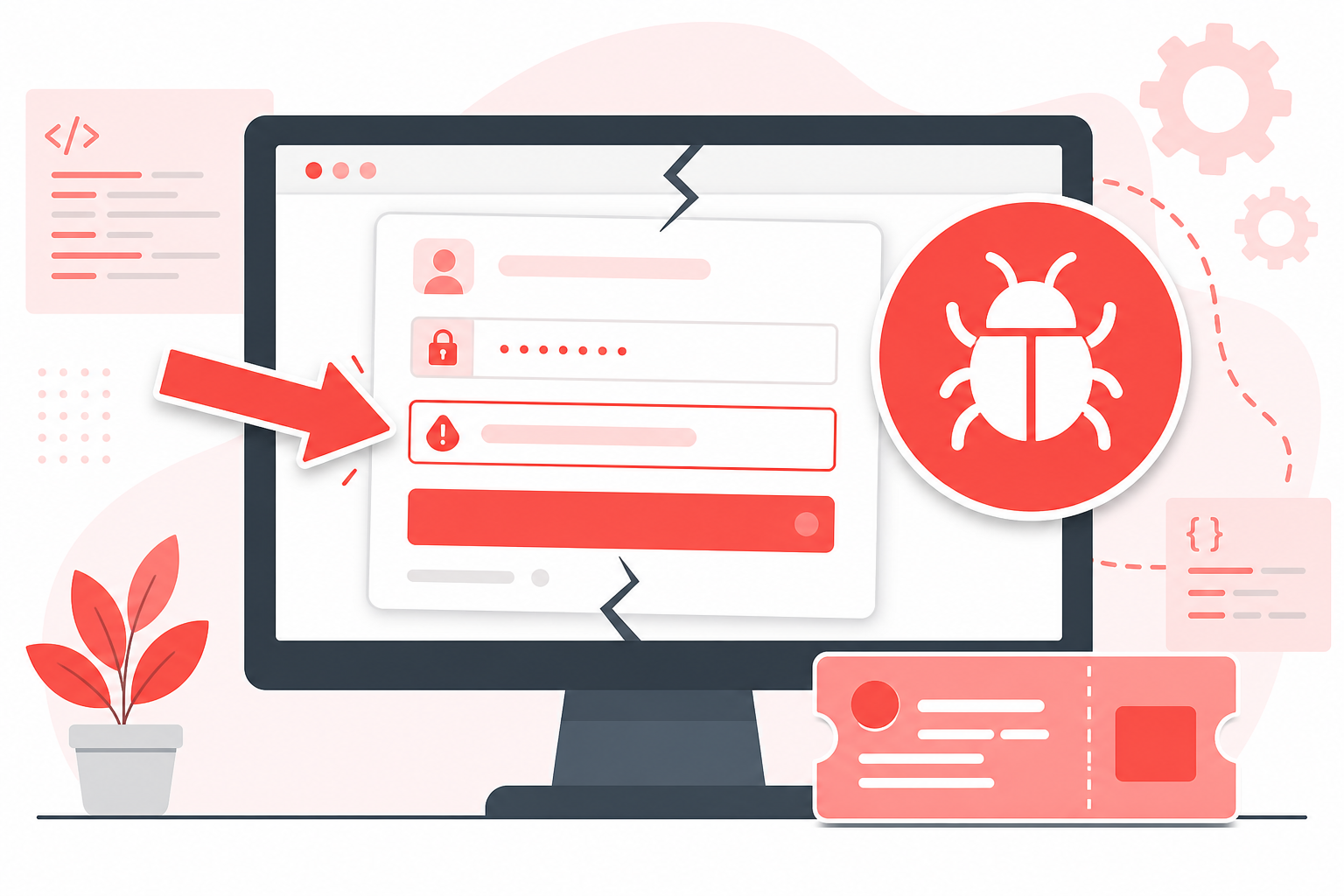
You captured a bug on Linux, but the PNG alone does not tell the story. Reviewers need an arrow on the broken button, a label on the wrong value, and blur on the customer email in the corner. Learning to annotate screenshots on Linux turns a raw capture into a clear handoff.
Algenius is a plug-and-play daily activity logging and screenshot app for Windows and Linux. Capture with Alt+Q or Alt+A, then use the advanced premium editor, fully free, for arrows, text, shapes, blur, and crop.
Why bare screenshots fail on Linux teams
Linux desktops ship with solid capture tools, but many stop at a file in Pictures. The real work is markup:
- No callouts: A full screen dump forces the reader to hunt for the issue.
- Sensitive data: Terminals, browsers, and tickets often show emails, tokens, or names.
- Tool hopping: Capture in one app, annotate in another, then upload somewhere else.
- Inconsistent style: Every teammate marks bugs differently, so triage slows down.
One capture to edit to share loop keeps bug reports, SOPs, and reviews consistent.
What goes wrong with common Linux workflows
Method | Problem |
|---|---|
Save PNG, open GIMP | Powerful, but slow for a five second arrow |
Desktop built-in annotate | Fine for a quick mark, thin for blur and repeated handoffs |
Separate capture and editor apps | Extra steps and mismatched shortcuts across machines |
Skip markup entirely | Reviewers ask "where?" on every ticket |
Algenius keeps capture and the advanced premium editor in one Windows and Linux workflow.
How to annotate screenshots on Linux with Algenius
1. Capture the right frame
Press Alt+Q for an area around the bug or UI detail. Use Alt+A when full screen context matters. See screenshot shortcuts: area vs full screen.
2. Open the advanced premium editor
The capture opens ready to mark up. The same editor is fully free on Free and Pro: draw, shapes, annotate, blur, and crop.
3. Add arrows and shapes
Point an arrow at the broken control. Box the wrong value. Keep marks few so the eye lands on the issue in one glance.
4. Add text labels
Type a short note next to the mark: expected vs actual, step number, or severity. Avoid paragraphs on the image when a ticket comment can hold the detail.
5. Blur private data
Blur emails, API keys, customer names, and wallet balances before you share. See blur sensitive data in screenshots.
6. Crop, then share or paste
Crop noise from the edges. Paste into Excel or Google Sheets for a QA log, or send a share link in chat. For bug writeups, see how to document software bugs with screenshots.
Free vs Pro for Linux annotation
Feature | Free | Pro |
|---|---|---|
Unlimited screenshots (Alt+Q, Alt+A) | Yes | Yes |
Advanced premium editor (arrows, text, shapes, blur, crop) | Yes | Yes |
Paste into Excel and Google Sheets | Yes | Yes |
Share links | Yes | Yes |
AI OCR text extraction | No | Yes |
Custom branding and watermark | No | Yes |
Pro is $15.99/month with a 14-day free trial. See pricing.
Use cases by role
Developers: Mark the failing assert, the red console line, or the wrong API response in one shot.
QA engineers: Build evidence packs with numbered callouts and blurred customer data.
Support agents: Show users exactly where to click without recording a long video.
Technical writers: Build Linux how-tos with clear arrows on each step.
Common mistakes
- Too many marks: One or two callouts beat a rainbow of shapes.
- Forgetting blur: Check the corners for emails and tokens every time.
- Huge full screen dumps: Prefer Alt+Q around the issue when a region is enough.
- Writing the whole bug on the image: Keep the ticket text elsewhere; keep the image scannable.
Related guides
Frequently asked questions
How do I annotate a screenshot on Linux with Algenius?
Capture with Alt+Q or Alt+A, then use the advanced premium editor for arrows, text, shapes, blur, and crop. Share or paste when you are done.
Is the Algenius editor free on Linux?
Yes. The advanced premium editor is fully free, including draw, shapes, annotate, blur, and crop.
Can I blur sensitive data while annotating?
Yes. Use blur in the editor before you share. See the blur guide linked above.
Does annotation work the same on Windows and Linux?
Yes. Algenius uses the same shortcuts and editor on Windows and Linux so your muscle memory transfers.
Do I need Pro to annotate screenshots?
No. Annotation is free. Pro adds AI OCR, custom branding, the Daily Activity Logger, and more.
Get started
Download Algenius for Linux, press Alt+Q, and annotate your next screenshot in the advanced premium editor. Compare plans on the pricing page.