Learning how to document bugs with screenshots is one of the highest-leverage skills for QA engineers, developers, and support leads. A clear bug report screenshot shows the failure state, cuts reproduction time, and keeps remote teams aligned without another screen-share. Algenius is a plug-and-play daily activity logging and screenshot tool for professionals on Windows and Linux, built for fast capture (Alt+Q / Alt+A), annotation, and shareable links.
Why screenshots belong in every bug report
Text-only tickets invite ambiguity. Visuals show layout breaks, wrong copy, toast errors, and loading states that prose struggles to capture.
When you attach QA screenshots consistently:
- Developers reproduce faster because they see the exact UI state.
- Triage debates shrink when severity is obvious from the image.
- Remote QA stays aligned across time zones without live calls for every defect.
Always pair images with a short written summary: steps, environment, expected vs actual behavior, and severity.
Step 1: Capture the failure state immediately
Reproduce the bug once, then capture before you refresh, navigate away, or toggle feature flags.
Choose the right capture mode
- Area capture (Alt+Q): Modals, form fields, charts, validation messages, single components.
- Full screen (Alt+A): Layout bugs, scroll issues, multi-panel dashboards, or when context outside the widget matters.
Global shortcuts matter because broken UI is ephemeral. Algenius triggers capture from anywhere on the desktop, no hunting through menus while the error is still visible.
Read the full decision guide: screenshot shortcuts: area vs full screen.
Step 2: Annotate what matters
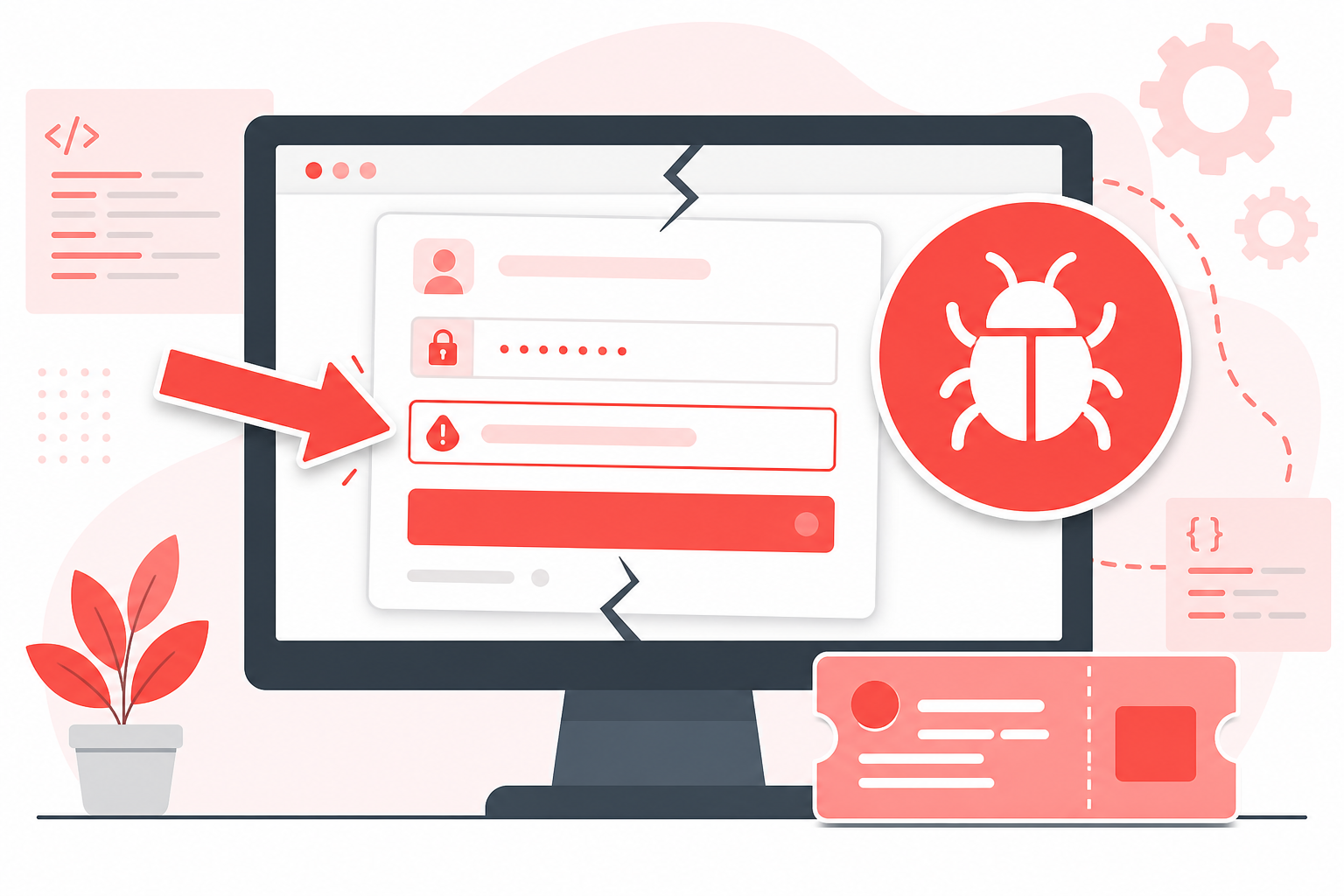
Raw pixels rarely speak for themselves. Mark the failing element, blur sensitive data, and add a one-line label when the defect is subtle.
Strong annotations answer:
- What is wrong?
- Where should the reviewer look?
- What should have happened instead?
Keep markup minimal. One arrow and one sentence beat a dozen shapes. Algenius Free includes draw, shapes, text, blur, emoji, step counters, and crop in the editor.
Step 3: Add context in the ticket
Paste the image into Jira, Linear, GitHub Issues, Azure DevOps, or Slack. Include:
- Numbered steps to reproduce
- Browser, OS, and build/version
- User role or permissions when authorization affects behavior
- Expected vs actual in plain language
- Share link when the tracker compresses attachments
Algenius generates algenius.app share links so reviewers open full-resolution captures without digging through email threads.
Ticket template (copy-friendly)
Summary: [component]: [short failure]

Environment: OS / browser / build

Steps:
1.
2.
3.

Expected:
Actual:

Screenshot: [attached or algenius.app link]
Step 4: Capture regression evidence after the fix
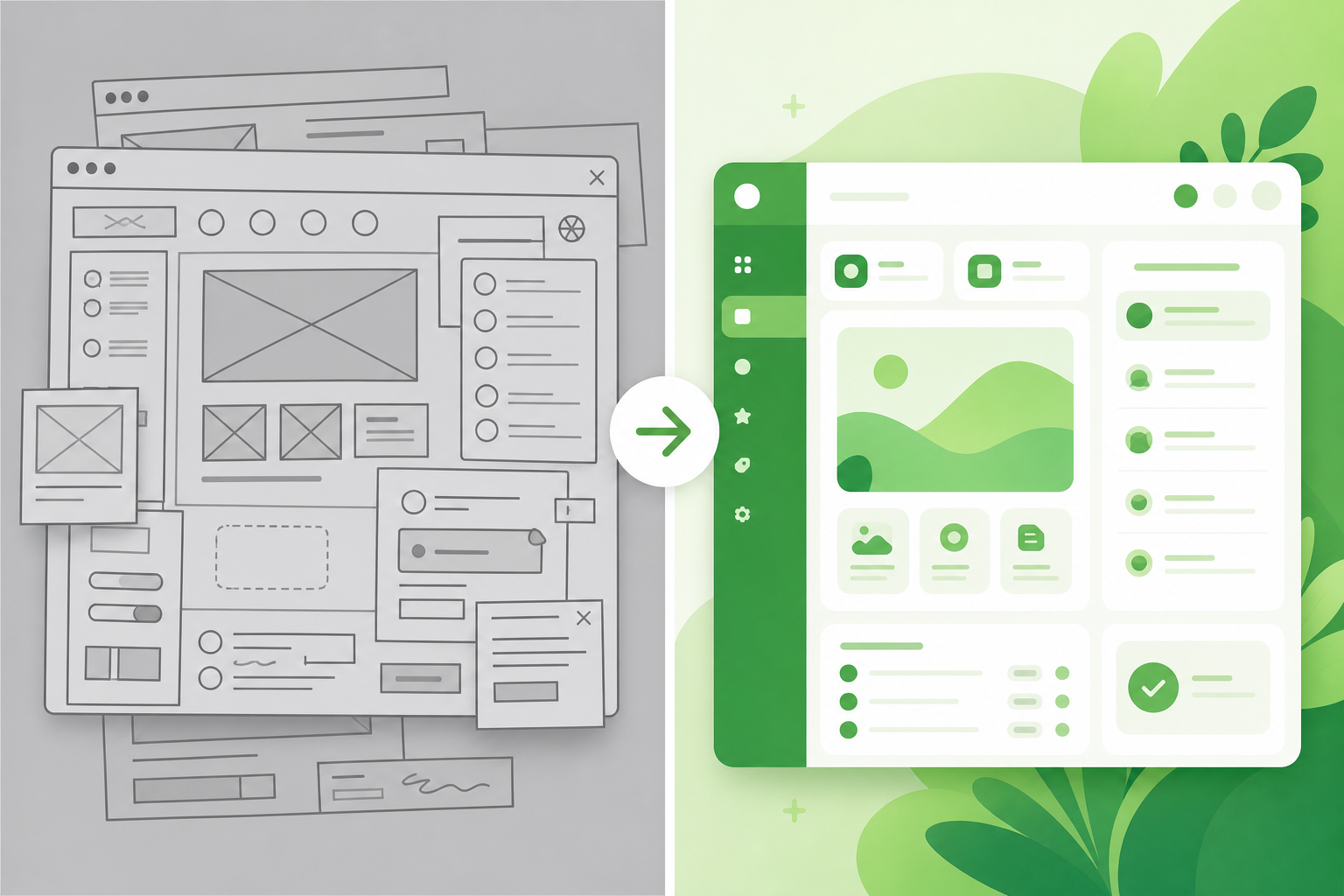
When the fix lands, document before and after in the same ticket or release note. Side-by-side comparisons make QA sign-off and visual regression reviews obvious.
On Algenius Pro, Compare stitches two captures into one image, ideal for release notes and PR comments. See before-and-after screenshots for design and QA.
For client-facing defect summaries, add a branded watermark on Pro: custom branded screenshots.
How Algenius helps bug documentation
Need | Free | Pro |
|---|---|---|
Alt+Q / Alt+A capture | Yes | Yes |
Annotation + blur | Yes | Yes |
Share links | Yes | Yes, kept forever |
Before/after Compare | No | Yes |
Custom branded exports | No | Yes |
AI text extraction from UI | No | Yes |
Download Algenius free or start a 14-day Pro trial, details on pricing.
Use cases by role
QA engineers: Regression passes with consistent capture discipline and Compare on Pro.
Developers: PR screenshots that show fixes without maintaining separate design files.
Support: Escalations to engineering with blurred PII and clear reproduction steps.
Product owners: Acceptance checks with before/after evidence attached to stories.
Common mistakes to avoid
- Cropping too tight and hiding navigation, URL bars, or error banners
- Including PII (emails, tokens, account IDs) without blur
- One oversized full-screen when two focused area captures tell the story better
- Skipping environment details because they feel obvious on your machine
- Only attaching “after” when the bug is visual, reviewers need the broken state too
Related guides
Frequently asked questions
Should I use area or full-screen capture for bug reports?
Use area capture (Alt+Q) for localized defects; use full screen (Alt+A) when layout, scroll position, or multiple regions explain the bug. When unsure, capture area first, then add full screen if context is missing.
Can I document bugs with screenshots on the free plan?
Yes. Free includes unlimited captures, the advanced premium editor with blur, clipboard export, share links, and spreadsheet paste. Pro adds Compare, branding, AI text extraction, activity reports, and keeps every capture forever.
How do I hide sensitive data in bug screenshots?
Blur tokens, emails, internal URLs, and account numbers in the Algenius editor before sharing. Blurring is available on Free.
What is the fastest way to share a bug screenshot outside the ticket system?
Generate an algenius.app share link so reviewers open the full image in a browser. On Pro, every capture is kept forever.
How do I show a bug fix was verified visually?
Capture the broken state before the fix and the correct state after, then attach a before/after comparison, manually or with Pro Compare.
Get started
Download Algenius for instant capture and annotation. Spend less time explaining bugs and more time fixing them, or view Pro pricing for Compare, branding, and unlimited share retention.